This post will go through the process of creating a few simple scripts to automate OKV installation using the REST API capability of OKV.

Step #1 Configure RESTful Services and download client tool
 |
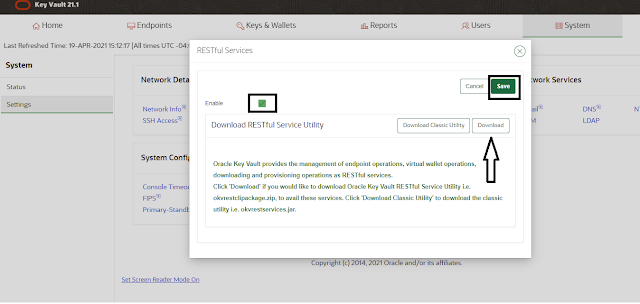
- Click on the "Enable" box to enable RESTful services
- Download the okvrestcliepackage.zip which are the client utilities.
- Save this setting to enable RESTful services.
Step #2 unzip and configure the client tool
.
 |-lib
 | |-okvrestcli.jar
 |-bin
 | |-okv.bat
 | |-okv
 |-conf
 | |-okvrestcli.ini
 | |-okvrestcli_logging.properties
Step #3 - Set the environment for the CLI
Step #4 - Set initialization parameters in okvrestcli.ini file
LOG_PROPERTY - Location of the logging properties. Default location is ./conf directory.
SERVER - IP address (or DNS) of one or more OKV hosts
OKV_CLIENT_CONFIG - location of the config file. Default location is ./conf directory
USER - OKV user that has authority to administer endpoints an wallets.
PASSWORD - Password for the user, or location of wallet containing the password. I am NOT going to use this as I am going to use a wallet file.
CLIENT_WALLET - I am going to use a wallet to store the password, and this is the location of the wallet file. I will be creating the autologin wallet later.
Below is what my "[Default]" configuration file looks like after my changes. I am going to use the environmental variables I set in the setenv.sh script.
NOTE: I am choosing to store my password in wallet rather than clear text in the .ini file.
[Default]
log_property=$OKV_RESTCLI_HOME/conf/okvrestcli_logging.properties
server=10.0.0.150
okv_client_config=$OKV_RESTCLI_HOME/conf/okvclient.ora
user=bgrenn
client_wallet=$OKV_RESTCLI_HOME/conf
Step #5 - Change the okv script to use the variables
Step #6 Create the wallet to save the password encrypted
cd /home/oracle/okv/rest
. ./setenv.sh


create environment variables OKV_RESTCLI_HOME and OKC_RESTCLI_CONFIG

   $OKV_RESTCLI_HOME    :  /home/oracle/okv/rest
   $OKV_RESTCLI_CONFIG  :  /home/oracle/okv/rest/conf/okvrestcli.ini

   Adding $OKV_RESTCLI_BIN to the $PATH


okv admin client-wallet add --client-wallet $OKV_RESTCLI_HOME/conf --wallet-user bgrenn
Password: {my password}
{
"result" : "Success"
}
Step #7 Create the run-me.sh script
- Ensure the variable OKV_RESTCLI_HOME is set before it can be executed.
- Determine the DB_NAME from the $ORACLE_BASE/diag/rdbms/*/$ORACLE_SID directory. Solving for the * should give us the DB_NAME
- While executing, it tells you what it believes the DB_NAME is, and gives you a chance to change it if incorrect.
- It will validate if the wallet exists by accessing OKV. If the wallet already exists, it does not try to create it again.
- It will install the client software in $ORACLE_BASE/admin/$DBNAME/wallet/okv
Step #8 Zip it all up and place it in a location to be downloaded
.
 |-lib
 | |-okvrestcli.jar
 |-bin
 | |-okv.bat
 | |-okv
 |-conf
 | |-okvrestcli_logging.properties
 | |-ewallet.p12.lck
 | |-ewallet.p12
 | |-cwallet.sso.lck
 | |-cwallet.sso
 | |-okvrestcli.ini
 |-setenv.sh
 |-run-me.sh
- Update the okvrestcli.ini file with OKV host IP
- Update the okvrestcli.ini file with the the user
- recreate the wallet file that contains the password for the OKV user